Now is the time where Year 12 students are getting their Trial HSC exams results. Some will be delighted. Some will be disappointed. Regardless of the result and how students feel about them, they are still only 50% of the way there. They are only half way through the HSC marathon and there is still lots of room to grow. It is now the time to review study plans and focus areas. A strategic way to do this is to support students to do a deep dive of their their results.
I’ve used this template with my Year 12 Chemistry students. After students finish the template, we have a one-on-one chat. We discuss what they need to focus on from now until the written HSC exams. Students also use the same template when they do past HSC so they can continually adjust their study plans.
You can download and customise the exam reflection template.
In a perfect world, every lesson will be well planned and timed. However, every teacher has found themselves stuck with nothing planned. Maybe it’s because a colleague is too sick to send in work. Here are three fast, no-prep activities to keep in your teaching toolbox so you can take them out for any of these moments. They can be set as a whole class task, small group activities or individual tasks. They are also great for students who are fast finishers.
Non-fiction text reflection
Book your class into the school library or ask the Teacher Librarian to curate a selection of non-fiction texts (which may be related to the current topic, or not). Allocate 10 minutes for students to sample a book and fill in the non-fiction text reflection sheet. Repeat this two to three times depending on the length of your lesson. Then have students speak to each other about the books and select some students present to the class. You can even have students choose to borrow some of the books. I have done this activity many times and students love it. It’s a great way to explore the school library’s collection and to slow down and take a breather.
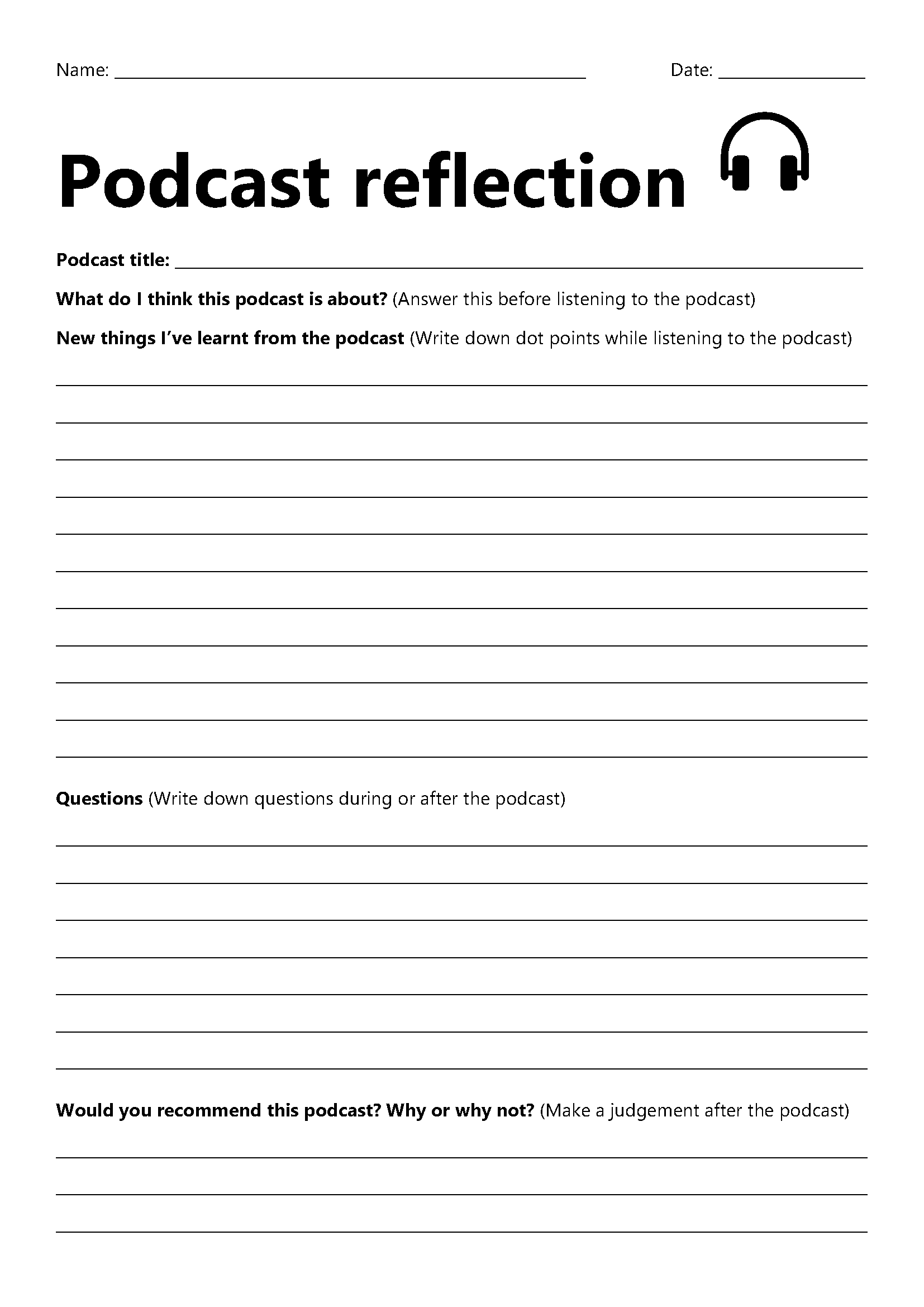
There are so many interesting videos and podcasts out there. Some of my favourite YouTube channels are Amoba Sisters, ASAP Science and Minute Physics. I love ABC listen for children-friendly podcasts. You can have the whole class view the same video or listen to the same podcast, or let students choose their own. I like to use reflection sheets for students to jot down their learnings and have them share it with their peers.
This is a simple yet powerful learning activity. Set a timer for 5 minutes, 10 minutes or 15 minutes. In the allocated time, students write a recount of informative text on what they have learnt this week, this term, the year so far or whatever you want them to (or whatever they want to). The key is to be like lightning and keep writing until the time runs out. So many other learning opportunities can follow. You can have students do a think-pair-share, select students to read their writing to the class or have students use their lightning writing sample to create a multimedia presentation to teach their peers.
What are your go-to activities?
What are your fast, no-prep activities for when you have nothing planned? Share yours by commenting below.
Every student I’ve worked with wants to do well at school. But what does this look like for each student and how do they get there? This is where goal setting can be very powerful.
Goal setting is a well-known strategy to improve student motivation, resilience and academic achievement. Doing a Google Search will bring up many articles supporting this. Some of my favourite ones are from Edutopia and What Works Best from the NSW Department of Education.
But what does goal setting look like in a classroom and how can it be implemented sustainably and consistently? In this post, I will share what has worked (and what hasn’t worked) for me in leading the implementation of goal setting for over 200 students and involving 20 teachers. I have packaged the latest collection of promising practices into a OneNote notebook, which teachers and download and customise.
So, these are the strategies, practices and resources that have worked for me (all are in the OneNote notebook).
Supporting students to help students set SMART goals
S = specific M = measurable A = achievable R = realistic T = time-bound
SMART provided a framework for students to set personalised goals that are personal, aspirational and realistic. SMART also reduces the number of well-intentioned goals where progress and success are difficult to measure, such as “try harder in maths”, “get better grades” and “concentrate more in class”. Some videos I’ve found useful in explaining SMART goals to students are Setting Goals from BrainPOP and How to write a SMART goal from Khan Academy and
But it isn’t enough to know what SMART goals are. I found students needed a comprehensive scaffold, particularly in:
Breaking down goals into smaller mini goals
I included this in the ‘specific’ section of SMART. When students have identified a goal, they are guided to identify three smaller steps to achieve the goal. This was important for students to track and assess their progress. The smaller goals not only help students to work towards their goals but also allow them to see success and stay motivated when they have achieved a smaller goal.
Identifying barriers and ways to overcome them
This part was optional for my students but for those who did it, it allowed them to see if their original goal was realistic for them and/or identify ways to remove known obstacles that may stop them from achieving their goal.
Sharing progress and accomplishments with family
My prior attempts with goal setting have largely involved it being a very personal experience for the student. Students completed a goal setting resource and at the end of the semester, they reflected on whether they had achieved their goal.
There was nothing wrong with the above approach, but to make the goal setting process more meaningful, I now have students write a personal reflection comment that goes onto their end-of-semester academic report. Students know the intended audience of the comment is themselves and their parents/carers. The personal reflection comment acts as a culminating product that nicely wraps up a yearly goal setting process.
And now to tie all the promising practices into one delivery mechanism – OneNote Class Notebook.
Why OneNote is the best tech tool for goal setting
I have used hardcopy booklets, Google Doc, Google Slides and Google Forms to deliver goal setting programs. It is OneNote Class Notebook that has been the most effective in delivering a responsive goal setting program, particularly for a large group of students that is being delivered by a large number of teachers. How does OneNote Class Notebook do this?
Supporting consistent implementation by offering a baseline resource package that can be used as is but has the flexibility to be customisable. This means teachers who are very new to goal setting have a resource they can take straight to their class and the teachers who are more experienced with goal setting can modify the resource to suit their needs and their students’ needs.
Providing ease of monitoring – OneNote Class Notebook allows the teachers who are leading the program to see the progress of every student in every class. This means we didn’t have to wait for scheduled meetings and self-reporting processes to identify which students/classes/teachers may need additional support. We can see how everyone is going anytime and be proactive in providing support.
Allowing ongoing, responsive adjustments – This is where OneNote Class Notebook has outshined the other tools. With hardcopy resources and Google Workspace apps, once the resource has been printed/distributed, it is overly complex to adjust it. With OneNote Class Notebook, resources can be distributed one page at a time so future resources can be prepared, adjusted based on feedback if needed and distributed when a student or class is ready. OneNote Class Notebook is like a digital binder so every page that is distributed still feels like and appears to be a cohesive package. It’s not a bunch of separate Google Doc files, a bunch of different Google Classroom assignment posts or a bundle of hardcopy papers.
The teachers leading the goal setting program created instructional videos on the technical aspects of OneNote Class Notebook such as how students get to their OneNote notebook and the structure of their OneNote notebook. This meant teachers who are not confident with OneNote could use the instructional video to guide their students. We also provided in-class team teaching for teachers who requested it.
The goal setting OneNote package
Download the Goal Setting OneNote notebook for your students. See here for more information on how to use OneNote Class Notebook to further customise the notebook and distribute it to your students. If you do use the resource, I would love to hear your feedback.
Establishing clear learning routines and behaviour expectations is fundamental for maintaining an effective classroom environment. In a previous article, I discussed my approach to setting routines and expectations for my year 7 class. At the beginning of each term, I find it valuable to review these with the students to ensure a shared understanding of how our class operates, ultimately optimizing learning time. In the past, I utilised slides, videos, and fill-in-the-blank sheets for this purpose. However, to inject more engagement and interactivity into the process, I have started to use chat cards.
How chat cards can enhance engagement
Each chat card presents a typical scenario and prompts students to identify the appropriate actions. By encouraging student conversations, you can assess their understanding of the established routines. Rather than straightforwardly informing students of the routines, the chat cards prompt them to actively recall and discuss possible responses, enabling you to address any misunderstandings effectively.
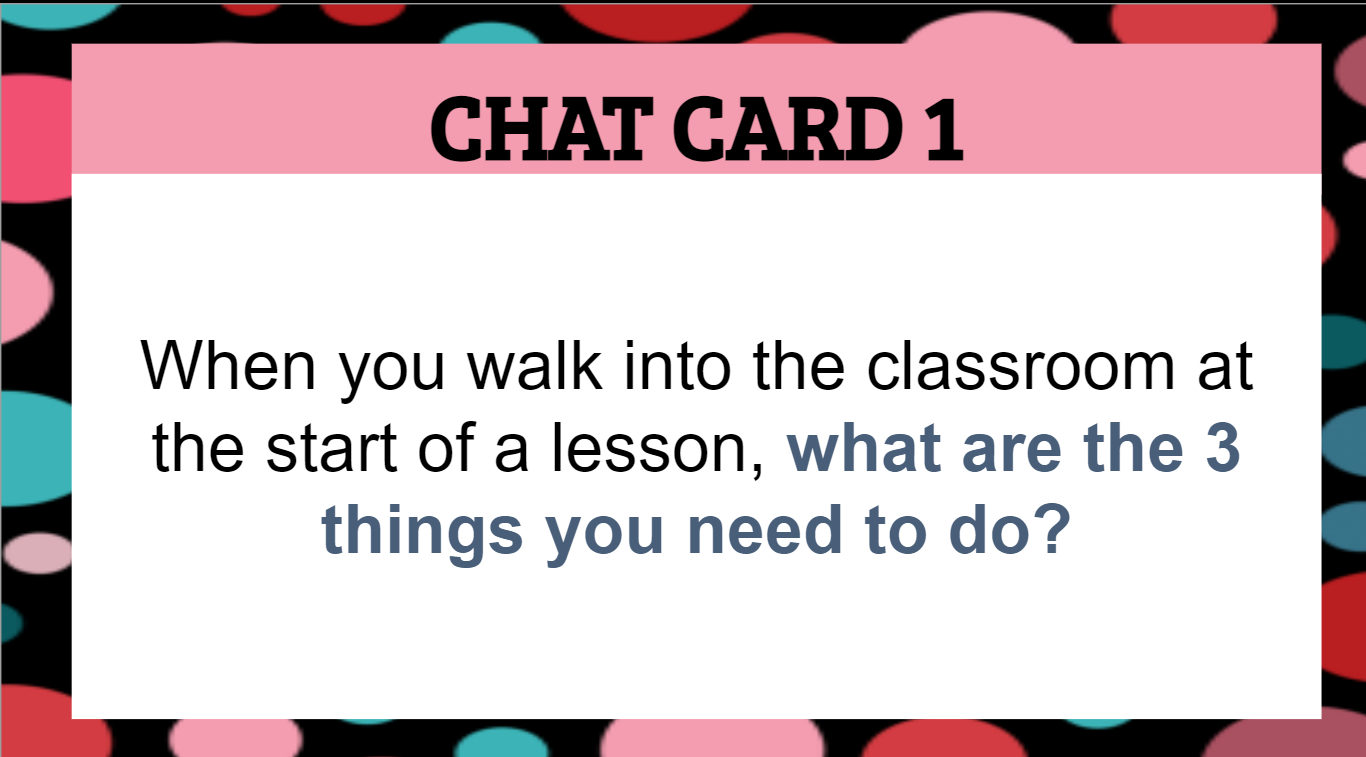
For instance, a card might ask about the three steps students should follow upon entering the classroom.
My class’s routine is as follows: 1. Go to your assigned seat. 2. Take out the necessary equipment. 3. Begin the lesson starter activity. This is a critical part of the lesson routine. It’s important it is consolidated at the start of each term.
Another card asks how a student can determine the required equipment for the lesson. In my lessons, students are expected to look at the whiteboard for this information.
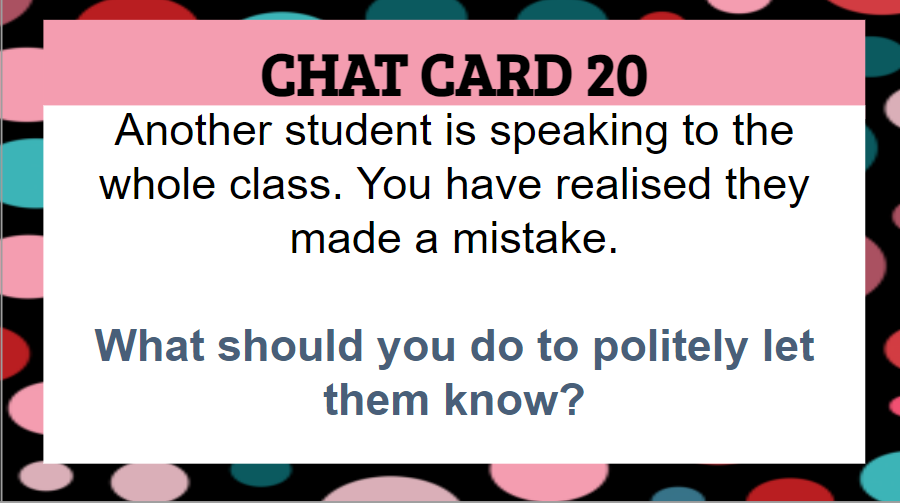
In addition to reinforcing routines, some cards highlight complex situations where students may need support to know how to respond in a respectful manner.
How to use chat cards in the classroom
I find it effective to utilize these cards by organizing students into groups of 3 to 4, designating a reader and scribe within each group. The cards can also be integrated into gallery walks, where students write their responses on post-it notes and place them under the respective chat cards. Alternatively, you can assign different chat cards to different groups and have each group role-play the scenarios in the chat cards. Although I typically introduce chat cards midway through the school year, they can be employed at the start to collectively establish routines and expectations with the class. The possibilities are endless; the key lies in customising the cards to align with critical aspects of your classroom routines and expectations.
Download the editable chat cards
Access the editable chat cards here to tailor them to your needs and the needs of your students.
After teaching for almost 15 years, here are three STEM activities I have done many times that need zero (almost) preparation and use materials readily available in nearly every classroom. These activities can work from middle primary to middle secondary but can be adapted to suit younger and older learners. These activities work really well without worksheets so no photocopying is required. They also work indoors or outdoors. You can literally walk into a class with just yourself and run these activities. And best of all, students love them!
All of them can be used to explore concepts in science mathematics and technology such as:
Science – fair testing, investigation design, data processing and representation
Mathematics – data and representation of data
Technology – design process and coding
You can incorporate literacy activities such as writing procedures and recounts.
So whether you need a quick activity for your own class or you are covering someone else’s class in short notice and need something hands-on and engaging, check out these activities and add them to your toolkit of anywhere anytime lesson activities.
Note these activities need timers. I usually ask students to use the stopwatch/timer app on their mobile phones. However, if you are teaching younger students who wouldn’t have mobile phones or you are working in a school where students are not allowed to have phones in class, you can ask students to use the stopwatch/timer app on their laptops or go online and use Google Timer. You can also display Google Timer on the interactive classroom screen for the class to use.
Paper helicopters
Materials and equipment needed – paper, scissors, paper clips, timer
Paper helicopters are also known as rotocopters. An internet search for paper helicopters or rotocopters will generate lots of results. I particularly like this page, which has instructions, explanations and templates. If you can’t print the templates, you can ask students to draw their own templates. The video below also shows how to draw the templates.
Paper helicopters are great for teaching fair testing, average calculations and presenting data in tables and graphs. For some classes, I also like to link them to adaptations in seeds, particularly sycamore seeds like the video below.
Paper planes
Materials and equipment needed – paper, timer
Almost every student knows how to fold a paper plane, but instead of folding a plane that flies the furthest, have a competition to see who can fold a paper plane that has the longest flight time. This is a good option as it doesn’t need metre rulers or tape measures; just a phone timer (see the above note if your students do not have phones). I like to have students explore the Fold ‘N’ Fly website, which has a large range of paper plane designs with written and video instructions.
You can also show the class a short clip from the movie, Paper Planes, to introduce the activity.
Exercise and heart rate
Materials and equipment – timer
This is one of my favourite activities. It gets students moving and can be linked to many concepts, particularly in science. The idea is simple. Have students measure their resting heart rate, and do some kind of exercise from 5 to 10 minutes (I usually let the students choose star jumps, jogging on the spot, running around the oval, sit-ups, push-ups or another exercise they are comfortable with) and then measure their heart rate again. Data can be collated from the whole class. Discussions can be linked to so many concepts from respiration to athletic performance. See this website for more detailed instructions and videos.
If you have a bit more time and access to digital materials, you can have students create their own heart rate monitor and evaluate its effectiveness.
Despite being well into the 21st century, schooling is still stuck in the 1900s, demanding consistency and conformity. Learning is driven by bells and timetables. School systems want learners to do the same thing, at the same time, in the same way.
If we’re to shift these issues in a child’s school career by 2040, we must transform the schooling system to adapt to the needs of learners and teachers.
Do Australian children have to spend so many hours at school?
Do teachers have to spend so many hours face-to-face teaching?
Does school have to be five days a week?
Can students have an opt-in day, so they only have to attend school for four days a week?
I have been imploding watermelons with rubber bands with my Year 7 science classes for over two years. The kids absolutely love the experiment. We work as a class to patiently place rubber bands onto a large watermelon one at a time and revel in being suddenly splashed by pieces of watermelon. Here is a video of our experiment. See The Big Watermelon Experiment for details on how to do the experiment.
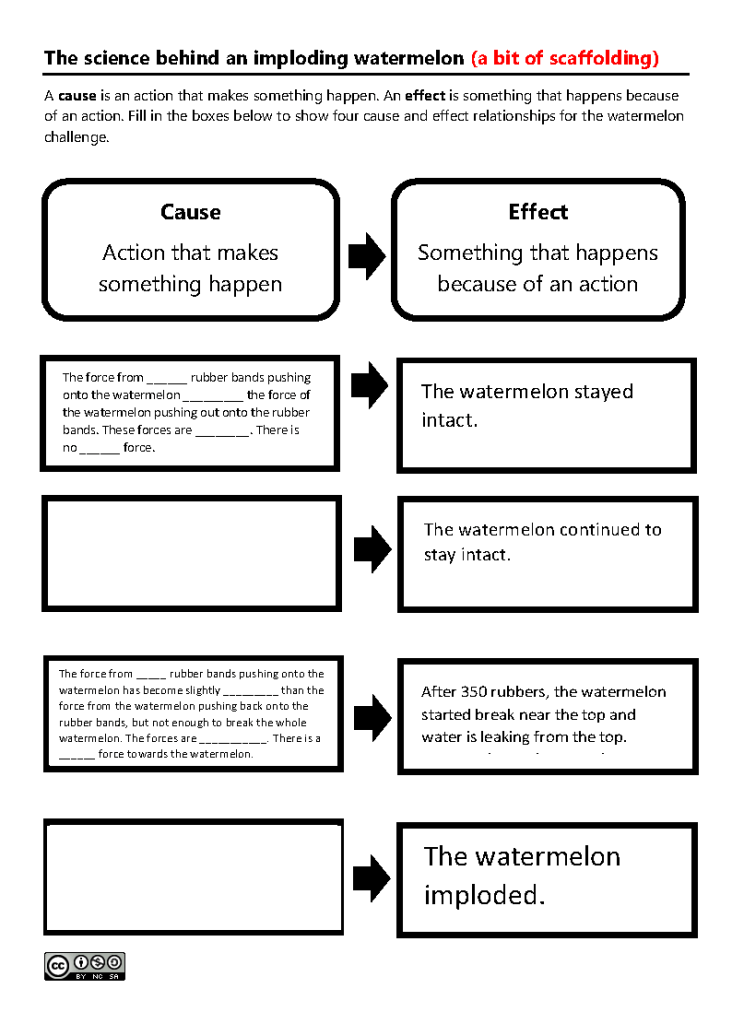
Imploding a watermelon with rubber bands is also a great way to teach how to write explanations in science. I like to use a cause-and-effect graphic organiser to teach students how to use forces to explain what happens in the watermelon implosion experiment. It’s a great opportunity to teach how to use scientific concepts to explain observations. After the graphic organiser, I like to use an explanation scaffold to support students to write an extended text that sequentially explains how rubber bands can implode a watermelon. In this activity, they use casual connectives, time connectives and rhetorical questions. It’s also a great way to embed any paragraph structures your school prefers like TEEL or PEEL.
Use the link below to download and adapt the writing scaffolds for your students.
If you have done the watermelon implosion and/or used the experiment as an opportunity to develop your students’ writing skills, please comment below to share your experience.
This year I teach Year 7 maths, year 7 science and Year 12 chemistry in a large high school. Working in a large high school means that no one has their own classrooms. Homerooms are non-existent. My school has a fortnightly timetable cycle with each 50-minute lessons. I am in at least 10 different classrooms in a fortnight. This means every 50 minutes, I am setting up and packing up in a different classroom, utilising different audiovisual equipment and working with a different seating layout. Learning time can be easily wasted if I don’t have a system and a consistent routine for me and my students as we move from room to room. So here are three ways I use Google Classroom to make it easier for me and my students to stay organised and maximise learning time.
Every lesson and every detail are on Google Classroom I post every lesson with every worksheet, slide deck, website, video and anything else I use for a lesson is on Google Classroom. This includes the lesson’s learning intention and success criteria for my Year 7 classes, and the syllabus content points for my Year 12 chemistry class. This means I can walk into any classroom, connect my laptop to the display screen and my entire lesson and everything I need is ready to go. I don’t need to waste time looking for files in File Explorer or my Google Drive. Everything is already in the lesson post on Google Classroom. This maximises learning time as it allows a more seamless lesson flow. It also minimises classroom management issues and cuts down on transition points.
At my school, every student has their own device, so I encourage my students to have the same resources opened on their device as I am going through them on the classroom display screen. This is very helpful for students who may have difficulty seeing the screen clearly for a variety of reasons. Students can also work at their own pace if we are making notes from slides that I’m using so the students who work faster can move on and the students who need more time can take more time.
Having every lesson posted on Google Classroom, lesson by lesson, also makes registrations so much easier.
A lesson post on Google Classroom for my Year 7 classA lesson post on Google Classroom for my Year 12 class
Lesson starter activity is on Google Classroom
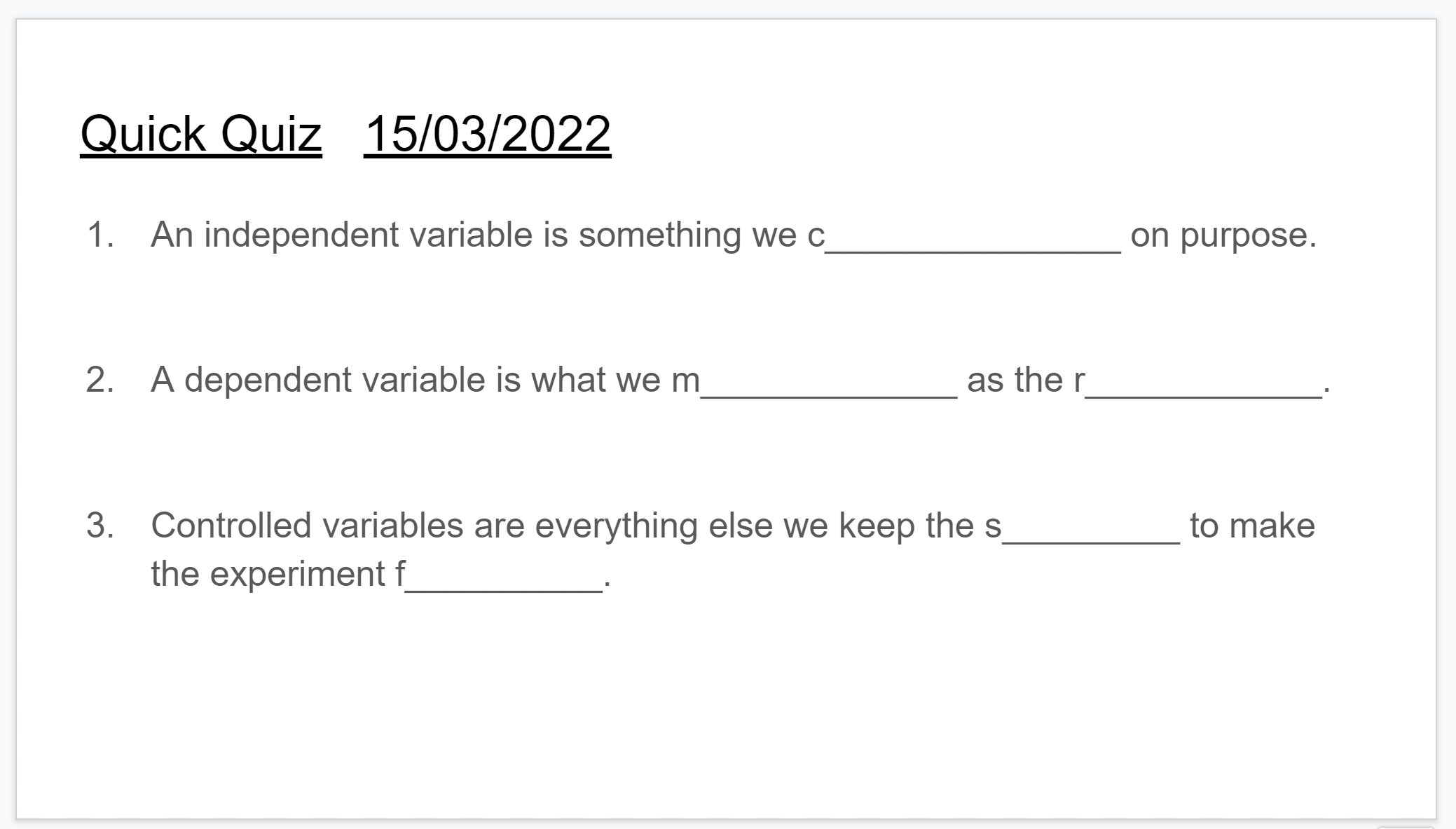
I start every lesson with Quick Quiz, which is a bell ringer activity that the class completes in silence as soon as they enter the classroom. The Quick Quiz is a series of questions based on previous content the class has learnt. I use the Quick Quiz for retrieval practice and as a classroom management strategy. The students know as soon as they walk into the classroom, they do the Quick Quiz. This gives me time to mark the roll, check uniform and set up for the lesson. Each lesson’s Quick Quiz is on Google Slides which is placed on the top of their Google Classroom Classwork. I use to handwrite the Quick Quiz on the whiteboard, but found having the Quick Quiz prepared before the lesson results in a smoother start to the lesson.
Quick Quiz Google Slides is in a post that is sorted to be on top of Google Classroom in the Classwork tab, which makes it really easy for me and my students to access at the start of each lesson.An example Quick Quiz question for my Year 12 chemistry classAn example Quick Quiz question for my Year 12 chemistry class
Lessons are posted on Google Classroom the day before
I post every lesson on Google Classroom in the afternoon the day before the lesson. This allows students to have a preview of the lesson before they walk into the lesson. I encourage my students to log onto Google Classroom in the evening or in the morning before school, so they know the type of learning to expect for the day ahead. I find that when students know what to expect ahead of time, they are more settled and there are fewer classroom management issues. Some of my Year 12 students like to read the slides the night before if they have time so they can better understand the content when I explain it in class.
These three strategies are not unique to Google Classroom and can be adapted to other digital tools like Microsoft Teams. The key is using technology to facilitate routines that allow you to maximise learning time and feel less frantic when you set up a lesson.
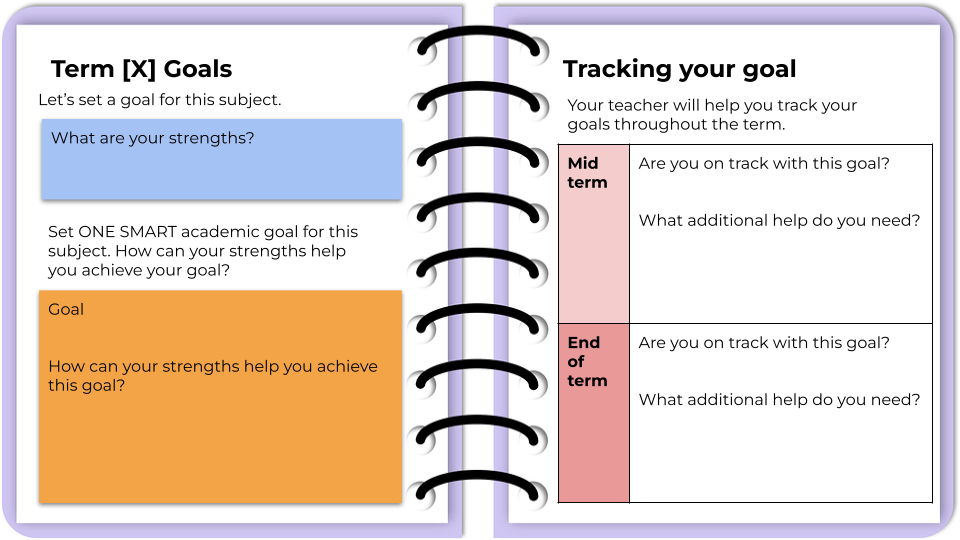
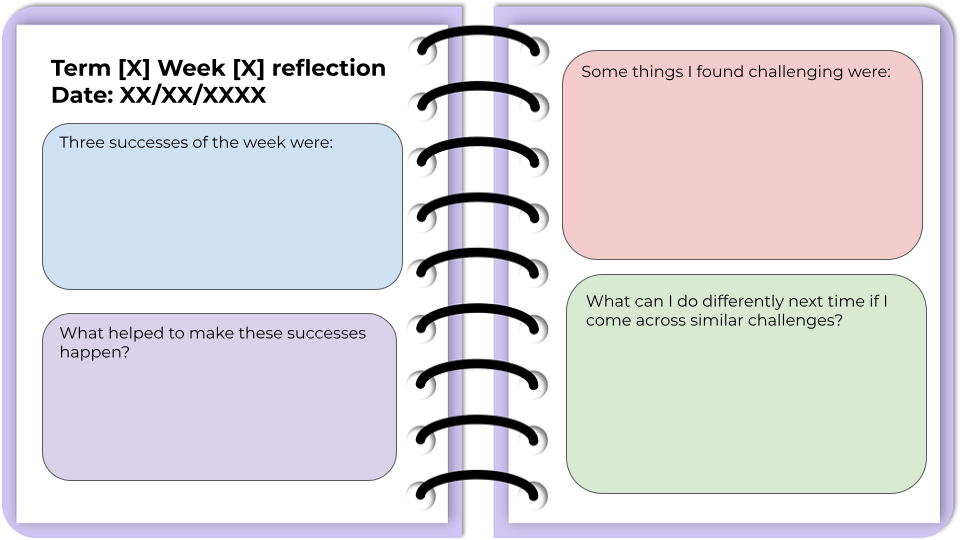
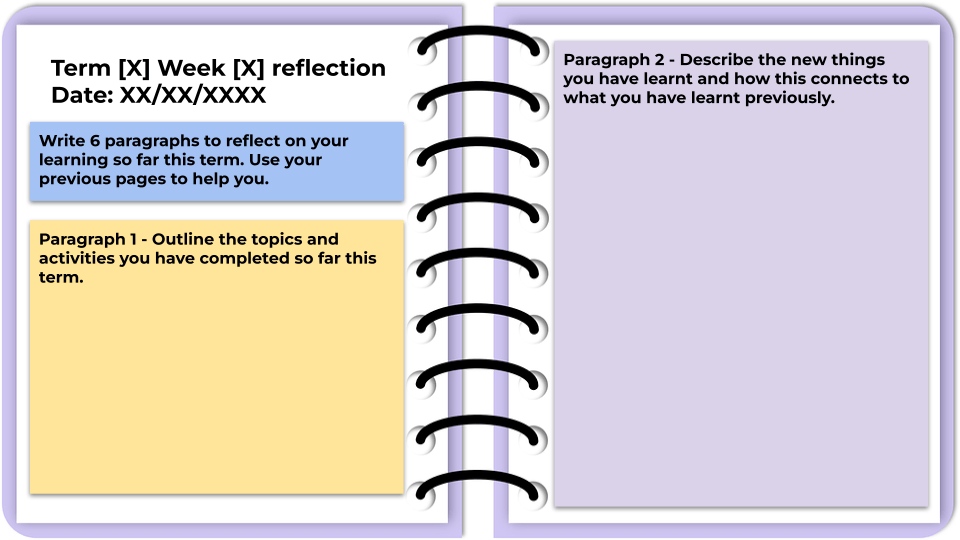
Last year I trialled digital learning logs with my Year 7 maths and science class, which you can read about here. Overall, I found it beneficial as my students were given regularly dedicated time to reflect on their learning, with a focus on what work they are proud of, the challenges they faced, how they overcame these challenges and what they can do differently next time. While students appreciated the time to stop and think about their learning, time was also a barrier to this initiative. Sometimes it felt like there was no time to do this and if we used lesson time to reflect, then we will fall behind. This challenge became very obvious in the last term of the year when students had a large number of assessments and end-of-year activities that we missed some of our dedicated time for learning logs.
So I’ve created the third iteration of the learning log, which only has six weekly reflection activities and a goal setting/tracking page that is equivalent to two weekly reflection activities. So there is a total of eight weekly activities, which provides a buffer for other things that come up during the term like assessments, excursions, incursions and other disruptions. I’ve changed some of the reflection activities to embed more extended writing which may be more suitable for older students. I’ve also incorporated an ACE score in some of the activities, which is a student self-assessment on their attitude, commitment and effort. This was inspired by Trangie Central School.
You can download your own copy of the learning log template to adapt and use with your students.
This year I have a Year 8 STEM elective class. It is a new course that my school is running where we build on existing syllabus outcomes in Stage 4 science, mathematics and technology mandatory. Students learn (and master) the core content in their traditional timetabled science, mathematics and technology mandatory classes and then apply it in their STEM elective. The STEM elective takes a project based learning approach with an emphasis on the design process.
In Term 1, we did the cardboard games challenge. The image below shows the project outline.
We used Caine’s Arcade as our hook activity.
I chose the cardboard games project because I wanted to emphasise to my students that STEM isn’t about fancy gadgets or coding. STEM is about solving problems within parameters, with ongoing prototyping. Making games out of cardboard is also a very low-cost project, which means students can create lots of prototypes and go through many feedback cycles. This was really important in our first STEM project.
The photos below show the cardboard games the students made.
So what worked well?
The project unpacking template that was inspired by Bianca Hewes. I found this template worked well in enabling students to engage with the project outline, identify their strengths and ask any clarifying questions. Students shared their completed templates with their team members so they can work out their group strengths and negotiate tasks based on their strengths.
The overall project allowed lots of differentiation and student voice. Students chose which cardboard game to create. Some students chose mechanically complex games like pinball while other students chose simpler games like skeeball. I had to guide some groups in adjusting their games throughout the project when they were not able to carry through their initial ideas. Eg. the group who wanted to make a cardboard claw machine had to adjust their game quite a few times after each prototype.
The ongoing prototyping and feedback as part of the design process. The project allowed students to provide feedback to each other and help each to solve problems.
The project presentation – We ended up presenting the project to a Year 7 group of students. While the original plan was to run the games room for the whole school, some of the cardboard games were not going to be able withstand over 1000 students playing them so we decided on one Year 7 class as this was our first project.
What would I change next time?
Strengthen the use of a consistent feedback protocol. For this cardboard project, I used the What Worked Well/Even Better If feedback protocol. Students gave their feedback verbally. Next time, I would have students write down their feedback so that each group can further reflect on it.
Strengthen the digital portfolio. I originally planned for each student to individually create a digital portfolio to record ongoing evaluations of their prototypes and how their were working as a team. This did not happen in this round of the project. We still did feedback, reflections and evaluations but it was more disjointed (done via verbal feedback and Google Doc templates) than I would’ve liked. Next time I want to test the use of a digital portfolio. I’m thinking of using SeeSaw.
The project presentation – Next time, I’d like to bring in an arcade games expert or someone who runs carnival games. Next time, I’d also have each student group provide a short presentation on their game and the design process they used to make each prototype before having students play the games.
Overall I am really, really proud of the effort, prototypes and end products from the Year 8s. The project gave me an opportunity to test some processes in a new elective that I can tweak for their upcoming projects, which will include pixel art, interactive posters and propeller cars.